Get Started with SimboVara: Step by Step Registration
SimboVara introduction
SimboVara is an AI front office copilot for healthcare. It helps automate phone calls and front desk workflows so that your team can respond faster with fewer manual steps. You can start at https://vara.simboconnect.com
What you will need
-
Work email address
-
Admin first name and last name
-
Practice phone number
-
Practice address, city, state, and zip code
-
Time zone for the practice
-
Credit or debit card for subscription
Step 1. Start registration
-
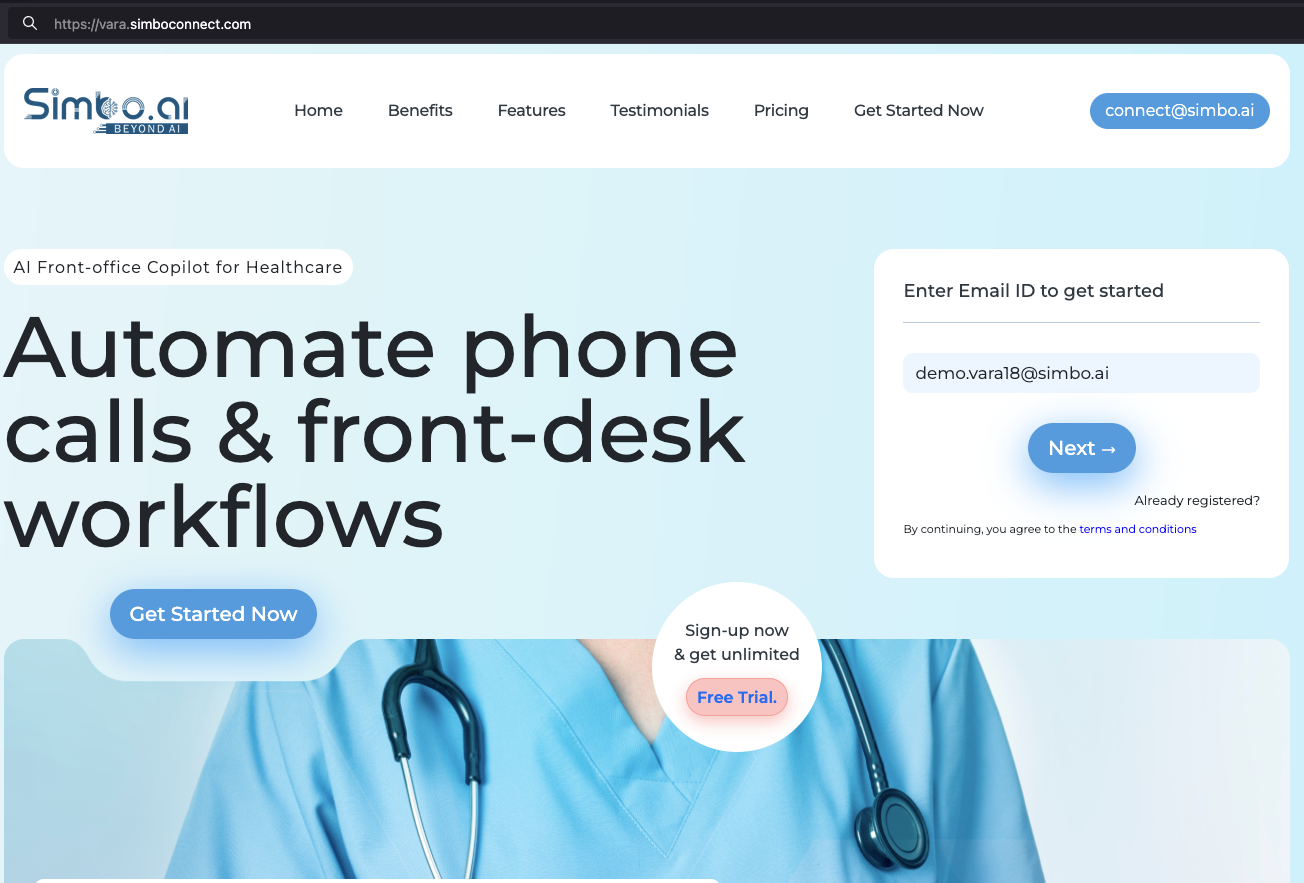
Enter your work email in the “Enter Email ID to get started” field on the top right corner.
-
Press Next.
See the Snapshot below:
Step 2. Create your account
-
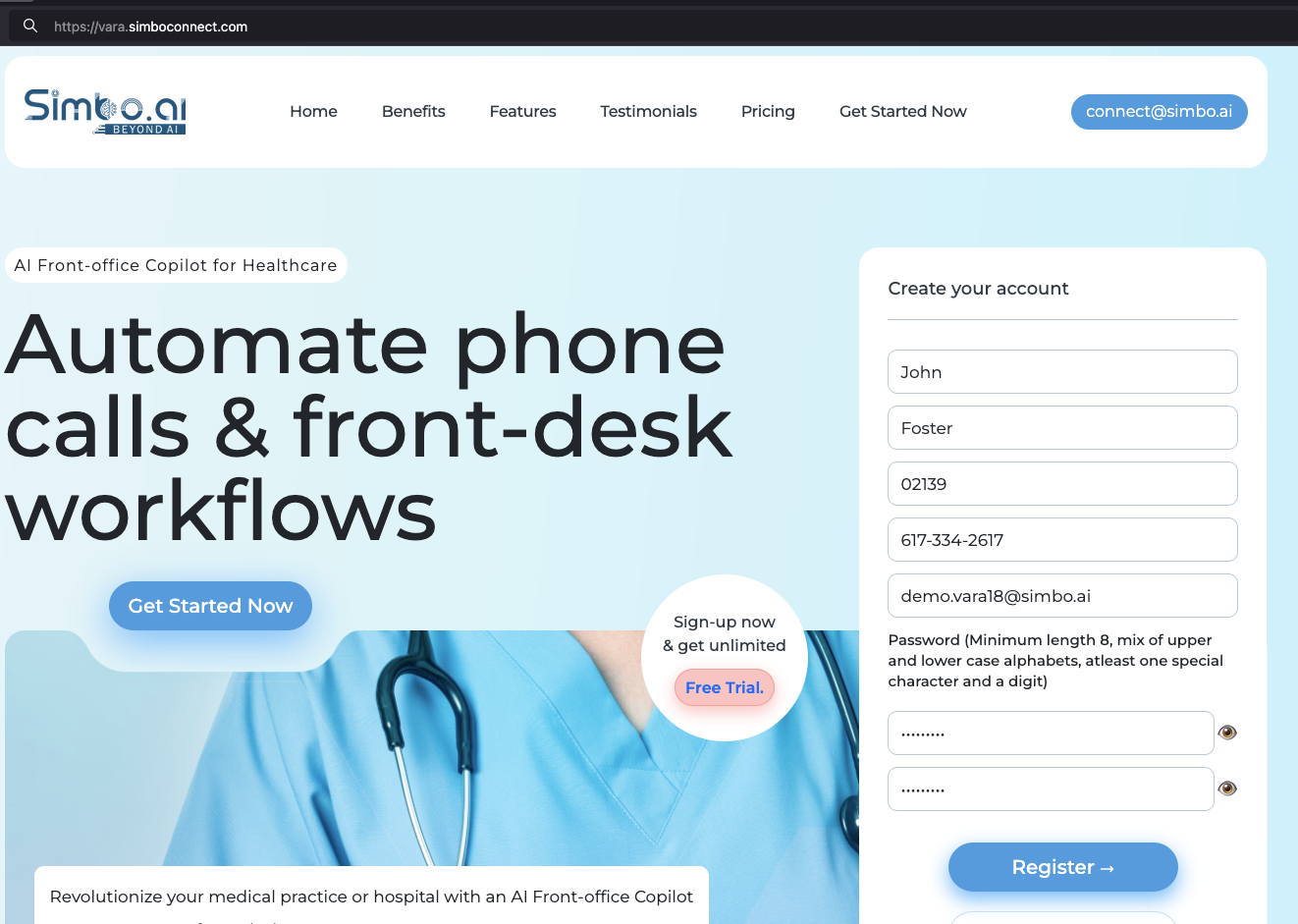
Enter first name, last name, zip code, phone number (xxx-xxx-xxxx), and email.
- The phone number specified preferably be a cell phone which helps sending some critical alerts, if required.
-
Create a strong password that meets the rules shown.
-
This person becomes the practice administrator. So, please specify the right person details.
-
Press Register.
See the snapshot below:
Step 3. Choose a plan
-
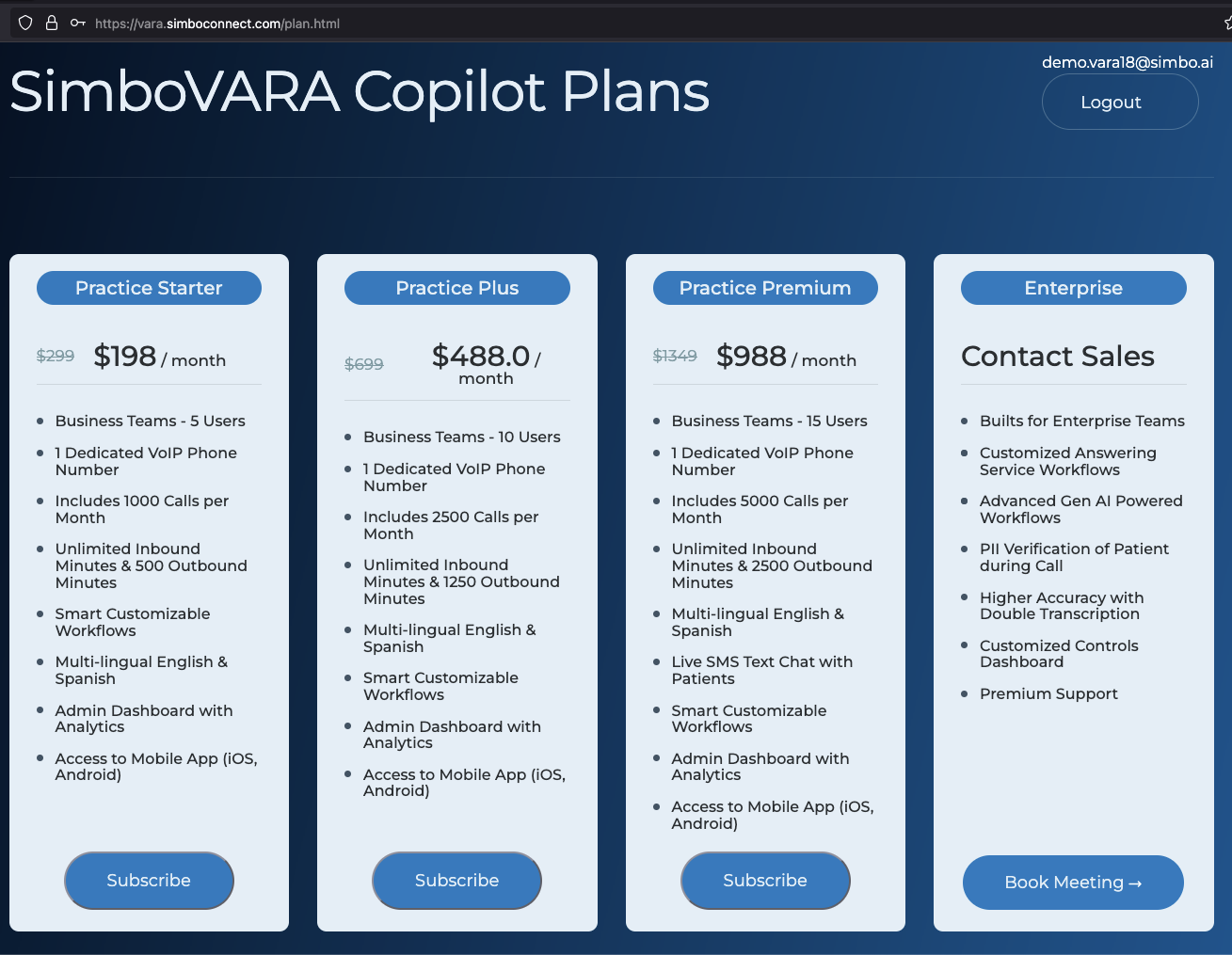
Review the plan cards.
-
Pick the plan that matches your team size and call volume.
-
Press Subscribe on that plan.
See the snapshot below:
Step 4. Enter payment details
-
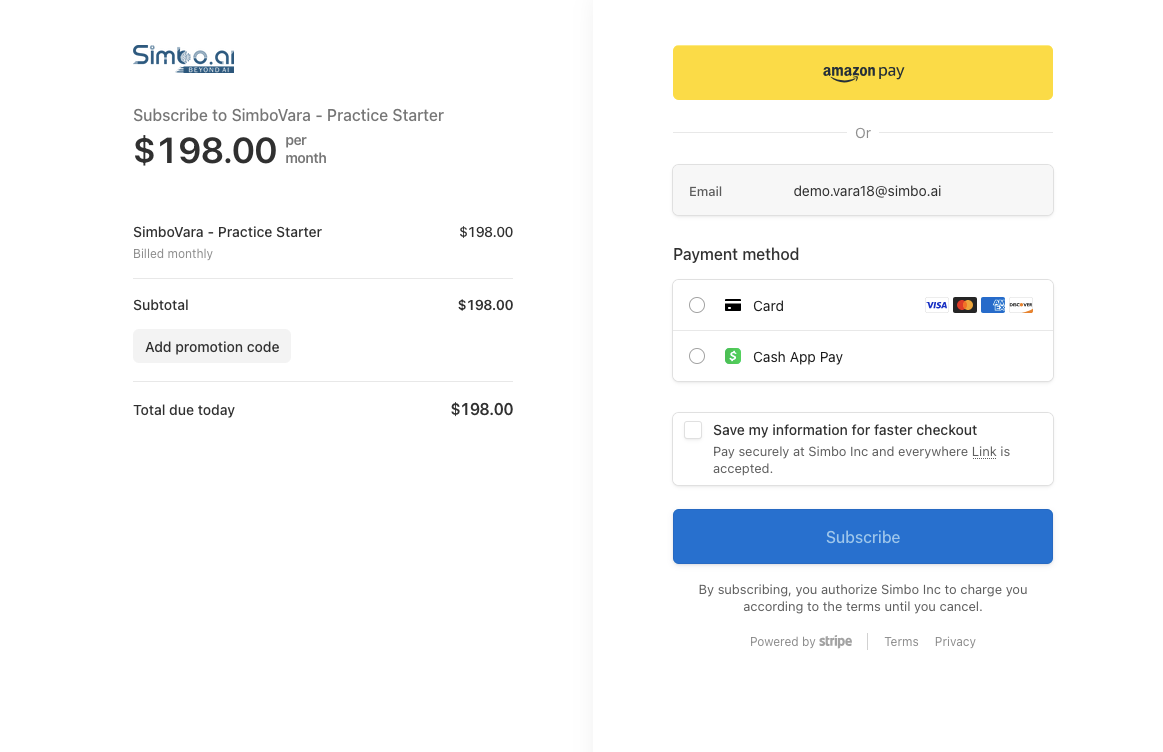
On the secure checkout page, confirm the plan and monthly subscription price.
-
If you have a promotion code, select Add promotion code.
-
Enter your email if requested.
-
Choose payment method and complete the subscription.
See the snapshot below:
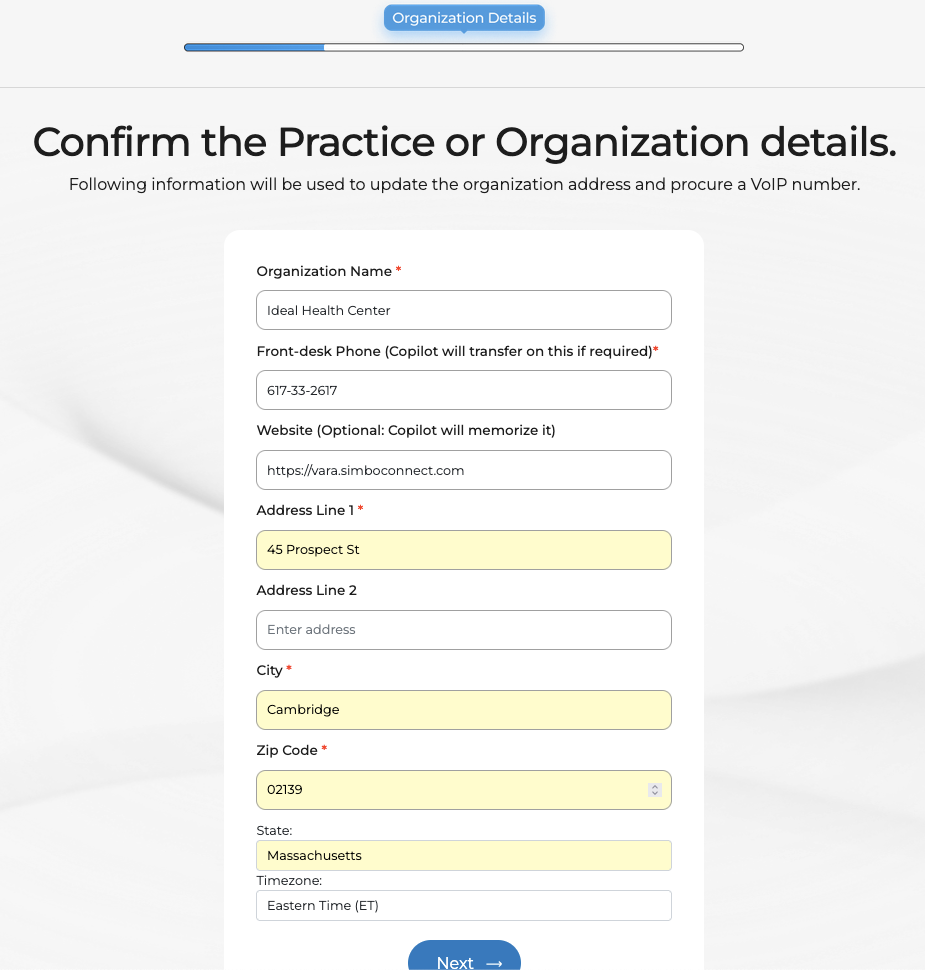
Step 5. Enter practice details
-
Provide the organization name and front desk phone number.
- Front-desk number is used to transfer phone calls. You can always edit in the workflows eventually if you dont want calls to get transferred.
-
Add the website URL if available. This website URL will be memorized by the Copilot to answer patient question. Skip it in case you do not want Copilot. You can modify this later as well. Memorization takes 2 to 10 minutes.
-
Enter full address, city, state, zip code, and time zone.
-
Press Next.
See the snapshot below:
Step 6. Set practice working hours
-
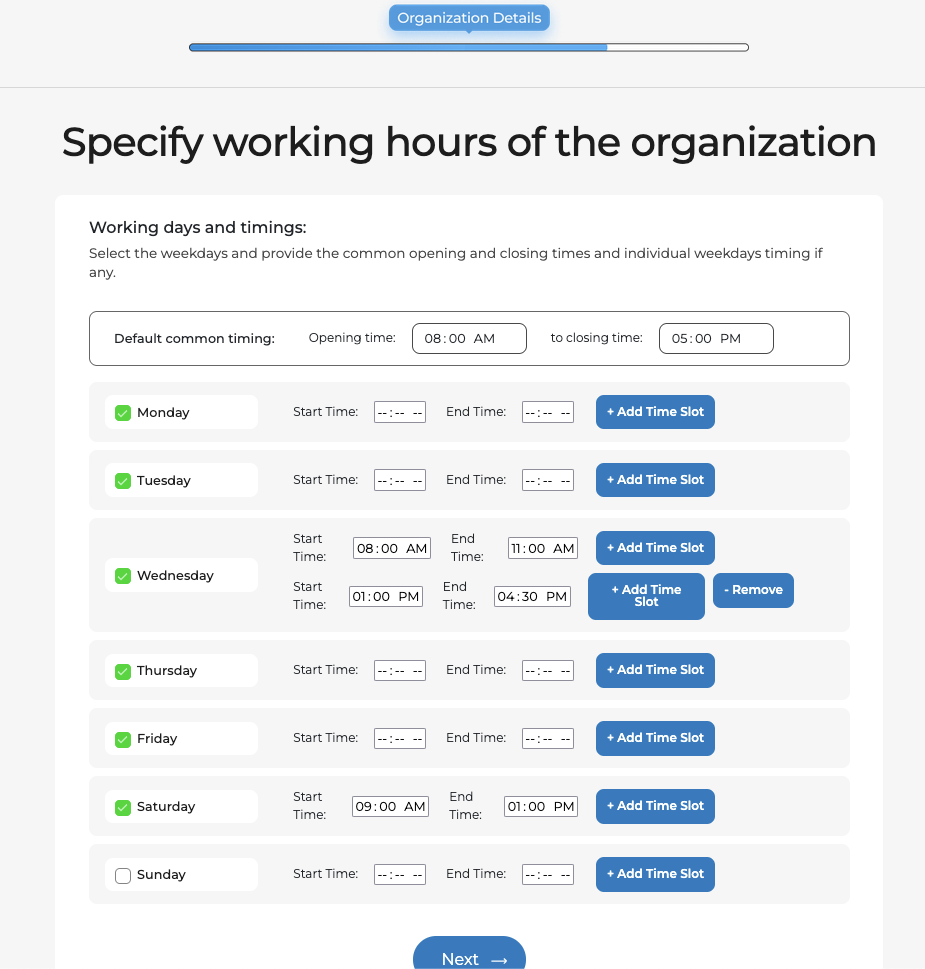
Choose the open days for the practice.
-
Set default opening and closing times.
- Choose the week days your office is open.
-
Add additional time slots for breaks or extended hours as needed. Use this only if the times are different from default times in #2 above.
-
Press Next to finish registration and initial setup.
See the snapshot below:
Step 7. Rolling out the AI Agent
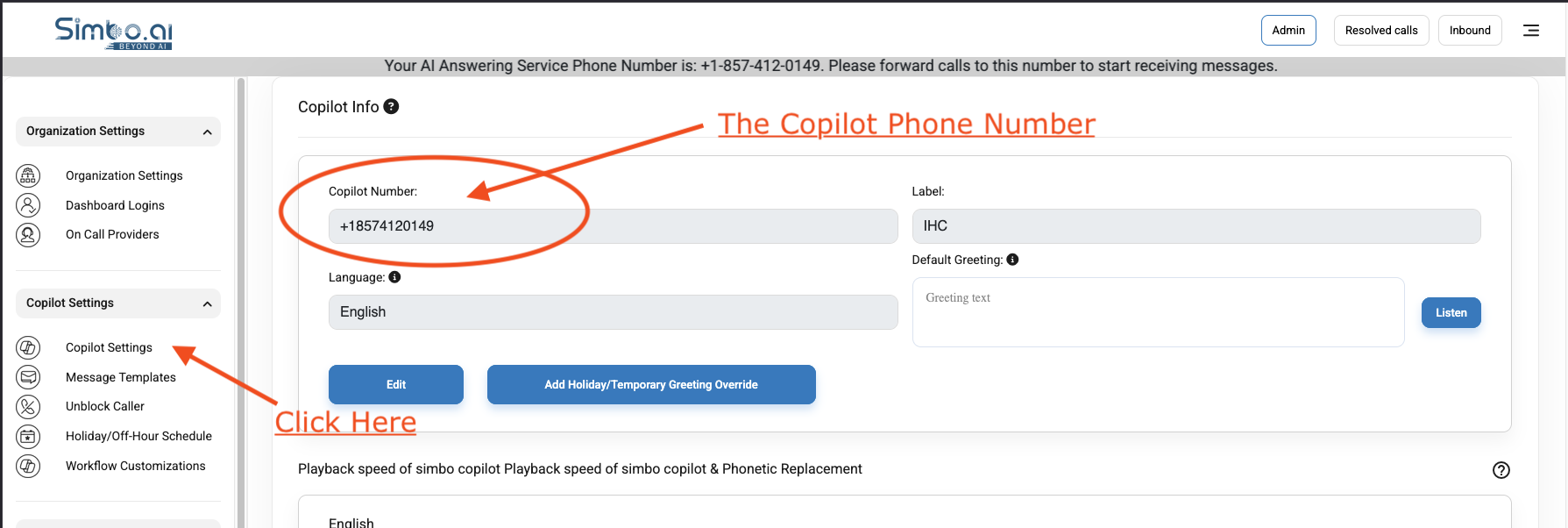
- Go to Admin -> Copilot Settings and check the "Copilot Number" for the dedicated Copilot Phone Number for your practice.
- Forward your phone calls from your Phone System to this Copilot Phone Number and you are all set!
- Feel free to make some calls to the Copilot Phone Number to check out how it works.
- But before you do that, ensure that you have setup your workflows properly! Details with links given below.
On-boarding and workflow configurations
Please see the links below for details on how to configure your Copilot for best performance and your custom workflows. You can update those on your login and press the "Admin" on top-menu.
-
You can checkout complete guide on this page: https://api1.simboconnect.com/helpb/books/simbovara-ai-phone-agent-for-medical-practices
- Customize your workflows: https://api1.simboconnect.com/helpb/search?term=SimboVara+Workflow+Customizations
-
In case you turned on the after-hours on-call workflows, please setup on-call schedule here: https://api1.simboconnect.com/helpb/search?term=on-call
- Add new dashboard logins: https://api1.simboconnect.com/helpb/books/simbovara-ai-phone-agent-for-medical-practices/page/add-a-new-dashboard-user-admin-panel
What happens next
-
Your subscription becomes active after payment.
-
You can finish any remaining on-boarding steps above on your Admin Panel.
-
Keep the admin login safe. You can add team members later from the admin area.
Need help
Email connect-support@simbo.ai from your work email and include your practice name.