# Get started with SimboDIYAS: Step by Step Registration
> Source URL for below info: https://api1.simboconnect.com/helpb/books/simbodiyas-after-hours-on-call-ai-agent/page/get-started-with-simbodiyas-step-by-step-registration
### Get started with SimboDIYAS
**What SimboDIYAS does**
SimboDIYAS is an AI powered answering service for medical practices. It helps screen patients, handle after-hours and overflow calls, and route messages to the correct on-call team. You can manage schedules, alerts, and message templates from an admin dashboard.
Website: https://diyas.simboconnect.com
**Before you start**
- Use a work email that you can access.
- Have your practice name and address ready.
- Have a payment method ready. Card and Cash App Pay are available on checkout.
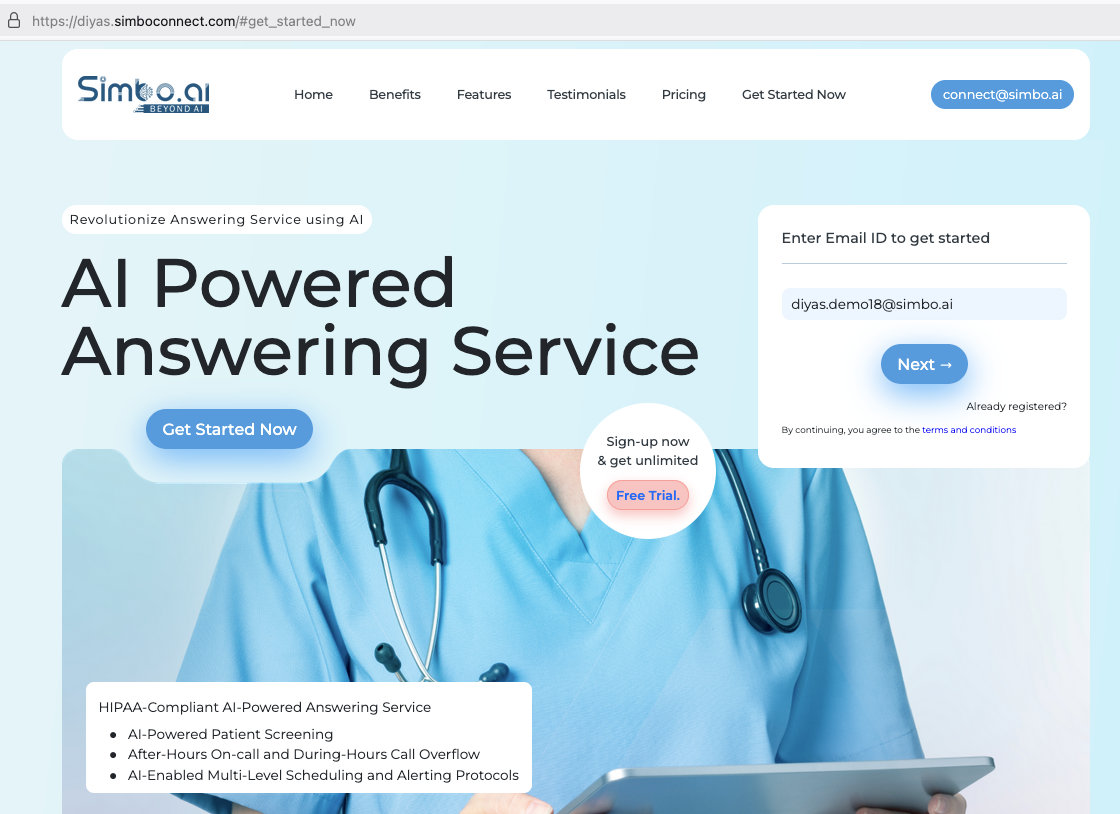
### Step 1. Enter your email to begin
1. Go to the [SimboDIYAS website](https://diyas.simboconnect.com).
2. Enter your work email in the “Enter Email ID to get started” field on the right.
3. Press **Next**.
Snapshot:
[](https://api1.simboconnect.com/helpb/uploads/images/gallery/2025-09/step1-main-wesbite-start-registration.png)
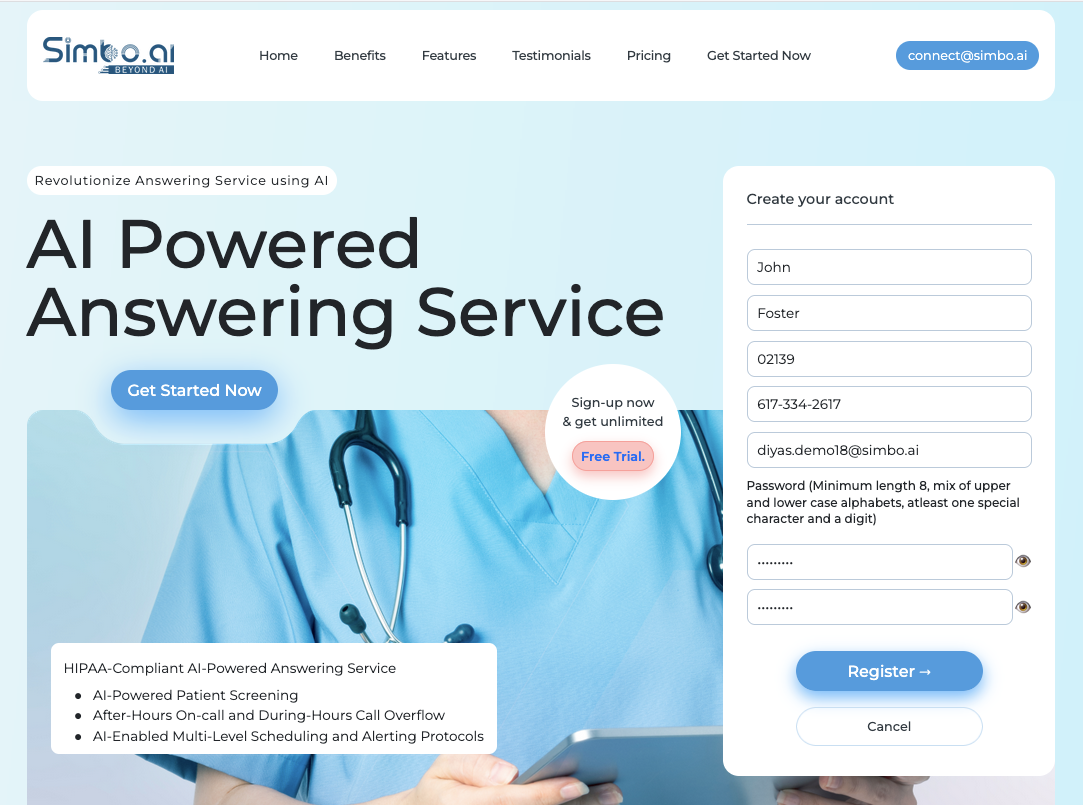
### Step 2. Create your administrator account
1. Enter **First Name** and **Last Name**.
2. Enter **Zip Code** and **Phone number (xxx-xxx-xxxx)**.
3. The phone number specified preferably be a cell phone which helps sending some critical alerts, if required.
4. Confirm your **Email** is correct.
5. Create a **Password**. Minimum length 8, use upper and lower case letters, at least one special character, and a digit.
6. Re-enter the same password.
7. Press **Register**.
Snapshot:
[](https://api1.simboconnect.com/helpb/uploads/images/gallery/2025-09/step2-enter-personal-detail-admin-diyas.png)
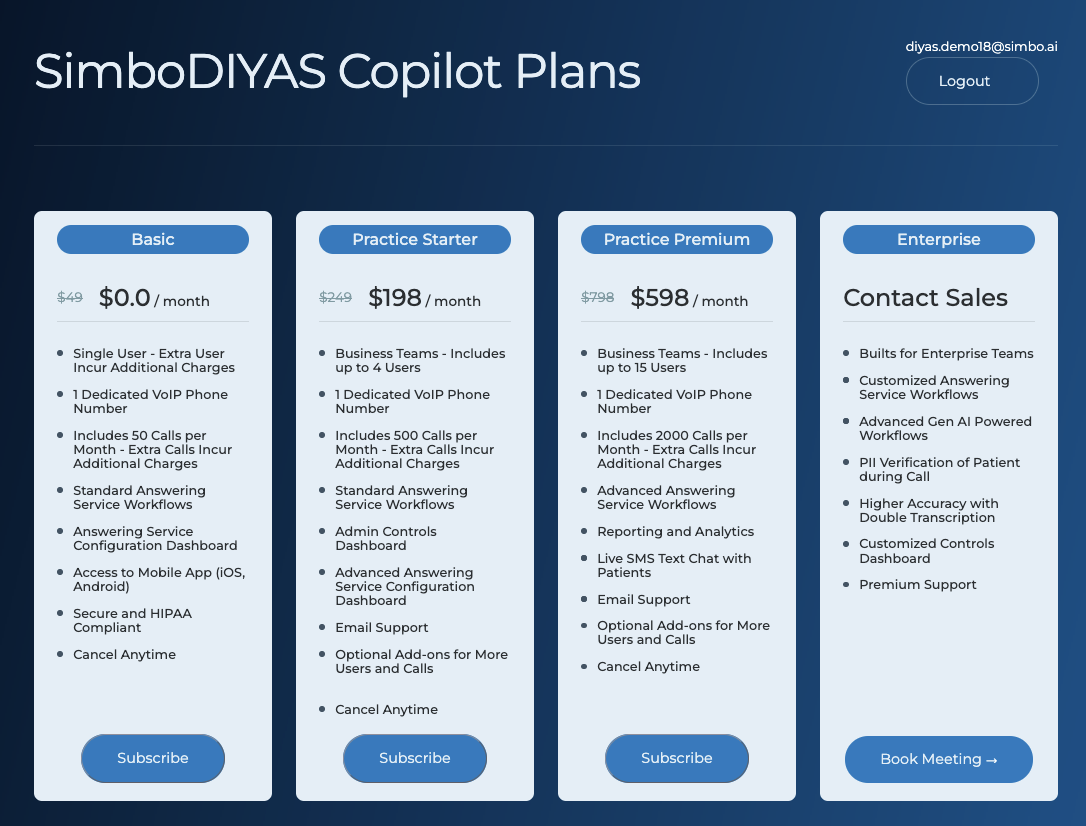
### Step 3. Choose a subscription plan
1. Review the available plans. You can pick **Basic**, **Practice Starter**, or **Practice Premium.**
2. Each plan includes a dedicated VoIP phone number and answering workflows. Higher tiers include more calls and extra features.
3. Press **Subscribe** under the plan that fits your practice.
Snapshot:
[](https://api1.simboconnect.com/helpb/uploads/images/gallery/2025-09/step3-select-the-plan-diyas.png)
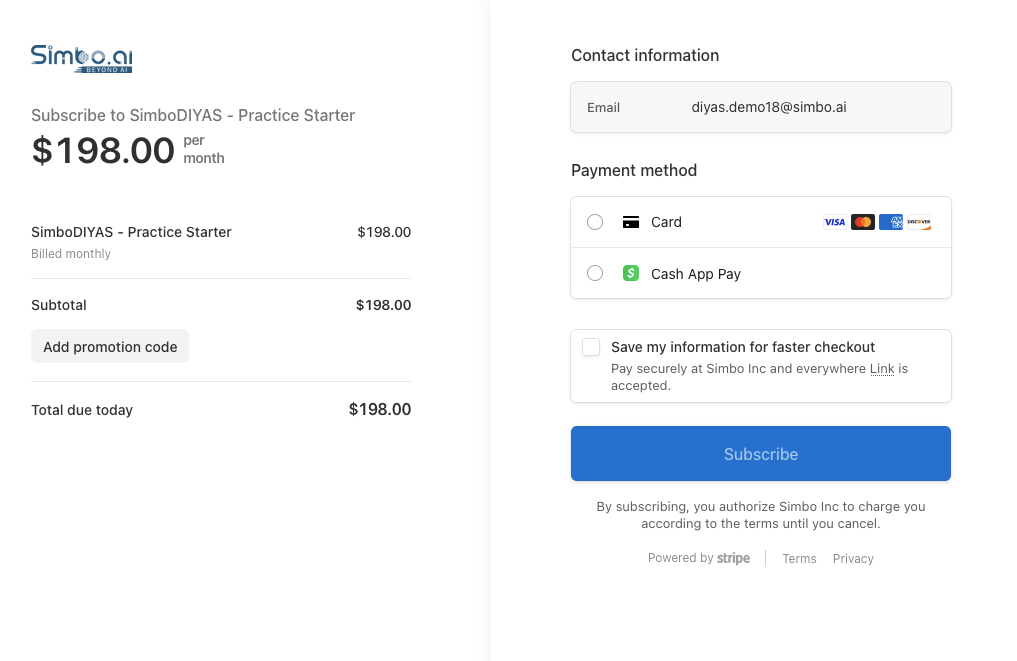
### Step 4. Enter payment information
1. On the secure checkout page, confirm your **Email**.
2. Choose **Card** or **Cash App Pay** as your payment method.
3. If you have a promo code, select **Add promotion code** and apply it.
4. Select **Subscribe** to complete payment.
Snapshot:
[](https://api1.simboconnect.com/helpb/uploads/images/gallery/2025-09/step4-enter-credit-card-details-diyas.png)
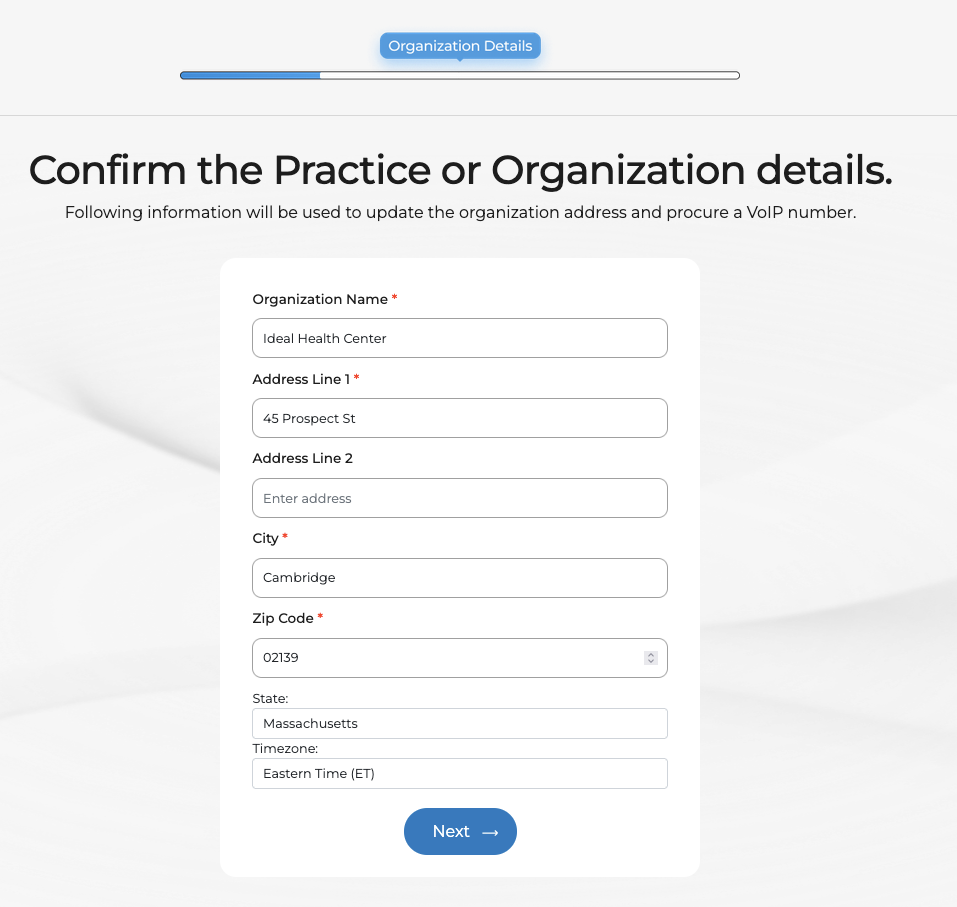
### Step 5. Enter practice details
1. Type your **Organization Name**.
2. Enter **Address Line 1**, optional **Address Line 2**, **City**, and **Zip Code**.
3. Confirm **State** and **Timezone**.
4. Press **Next**.
Snapshot:
[](https://api1.simboconnect.com/helpb/uploads/images/gallery/2025-09/step5-enter-practice-details-diyas.png)
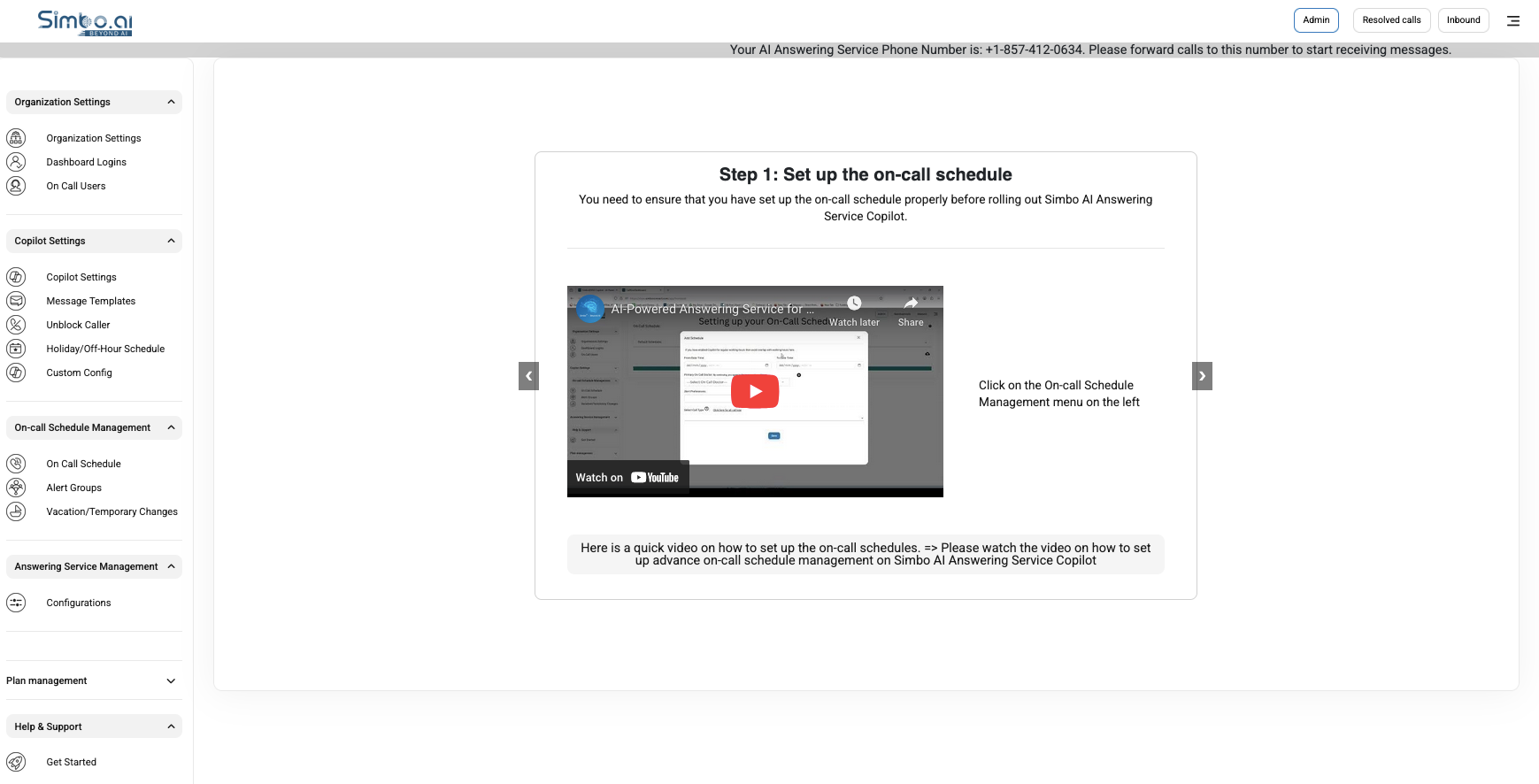
### Step 6. Follow the on-boarding screen
1. You will land in the admin dashboard with a setup guide.
2. At the top you will see your dedicated AI Answering Service **phone number**. Forward your practice calls to this number to start receiving messages.
3. Use **On Call Schedule** and **Alert Groups** to set coverage and routing.
4. Review **Copilot Settings** and **Message Templates** to customize call handling.
Snapshot:
[](https://api1.simboconnect.com/helpb/uploads/images/gallery/2025-09/step6-follow-onboarding-screen-steps.png)
### Step 7. Rolling out the AI Answering Service
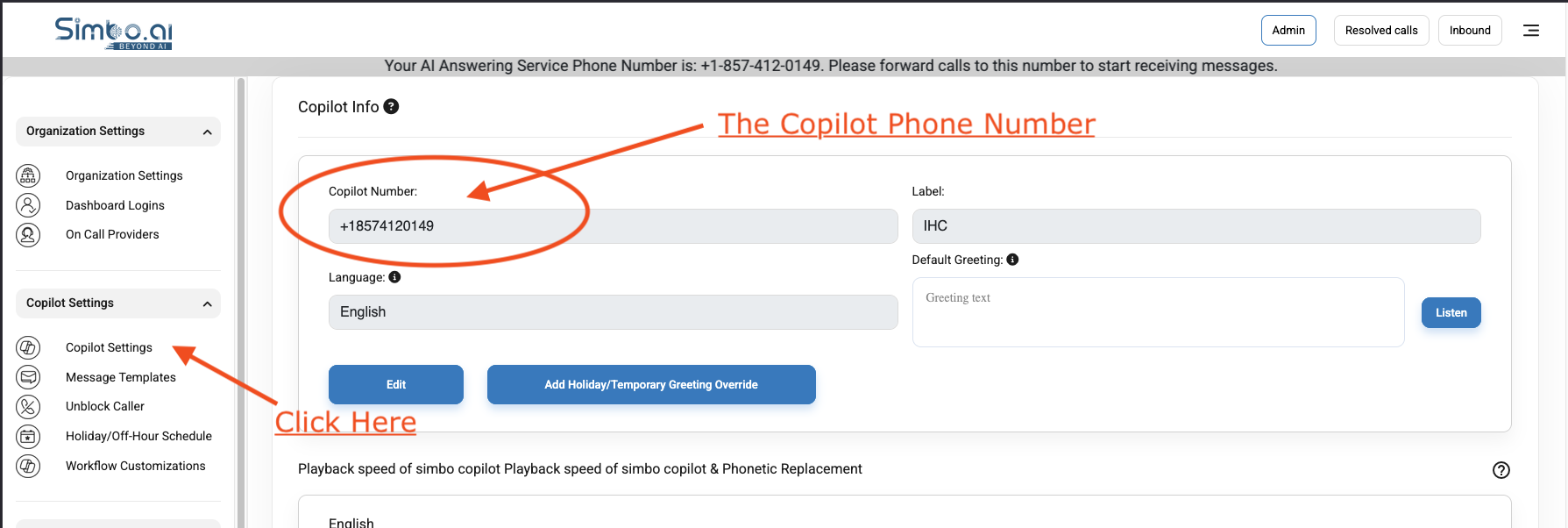
- Go to Admin -> Copilot Settings and check the "Copilot Number" for the dedicated Copilot Phone Number for your practice.
- Forward your phone calls from your Phone System to this Copilot Phone Number and you are all set!
- Feel free to make some calls to the Copilot Phone Number to check out how it works.
- **But before you do that, ensure that you have setup your workflows properly! Details with links given below.**
[](https://api1.simboconnect.com/helpb/uploads/images/gallery/2025-09/step7-rollout-phone-copilot.png)
### Step 8. On-boarding and workflow configurations
Please see the links below for details on how to configure your Copilot for best performance and your custom workflows. You can update those on your login and press the "Admin" on top-menu.
- You can checkout complete guide on this page: [https://api1.simboconnect.com/helpb/books/simbodiyas-after-hours-on-call-ai-agent](https://api1.simboconnect.com/helpb/books/simbodiyas-after-hours-on-call-ai-agent)
- Customize your workflows: [https://api1.simboconnect.com/helpb/search?term=SimboDIYAS+Workflow+Customizations](https://api1.simboconnect.com/helpb/search?term=SimboDIYAS+Workflow+Customizations)
- In case you turned on the after-hours on-call workflows, please setup on-call schedule here: [https://api1.simboconnect.com/helpb/search?term=on-call](https://api1.simboconnect.com/helpb/search?term=on-call)
- Add new dashboard logins: [https://api1.simboconnect.com/helpb/books/simbodiyas-after-hours-on-call-ai-agent/page/add-a-new-dashboard-user-admin-panel](https://api1.simboconnect.com/helpb/books/simbodiyas-after-hours-on-call-ai-agent/page/add-a-new-dashboard-user-admin-panel)
### What happens next
- Your subscription becomes active after payment.
- You can finish any remaining on-boarding steps above on your Admin Panel.
- Keep the admin login safe. You can add team members later from the admin area.
**Need help**
Email **connect-support@simbo.ai** from your work email and include your practice name.
> Source URL for above info: https://api1.simboconnect.com/helpb/books/simbodiyas-after-hours-on-call-ai-agent/page/get-started-with-simbodiyas-step-by-step-registration